The issue you’re experiencing—being redirected to the /people page instead of accessing the trunk edit page in your 3CX system—appears to be a known problem with 3CX version 20, particularly after upgrades or with certain SIP trunk configurations. When this happens, users who try to edit trunks are redirected to the user or People screen, and editing is blocked in the admin UI.
- 3CX v20 has made changes to how SIP trunks are handled and is stricter with unsupported trunk templates or legacy configurations.
- The error is intentional by 3CX to push users to use their preferred or supported trunk templates/providers.
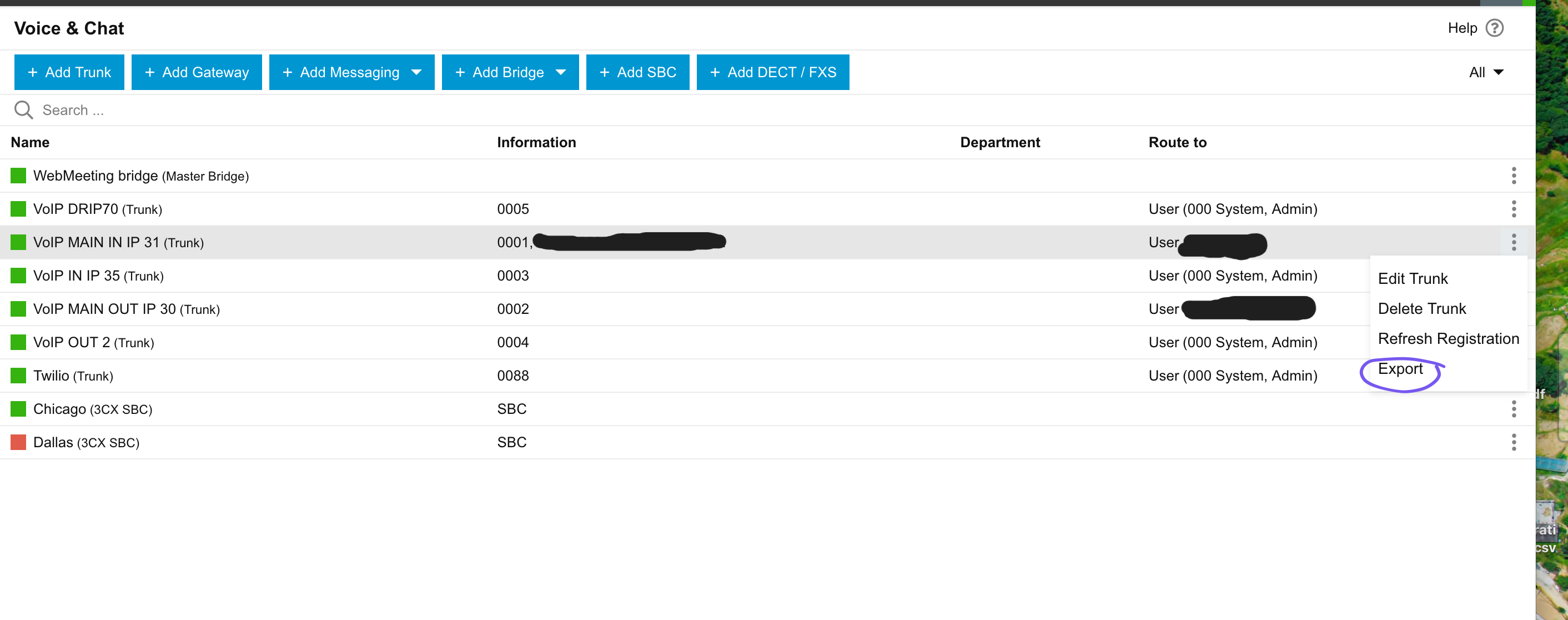
1.) Export the Trunk, will be downloaded as provider.pv.xml
2.) open the XM provider.pv.xml, find the filename of the template
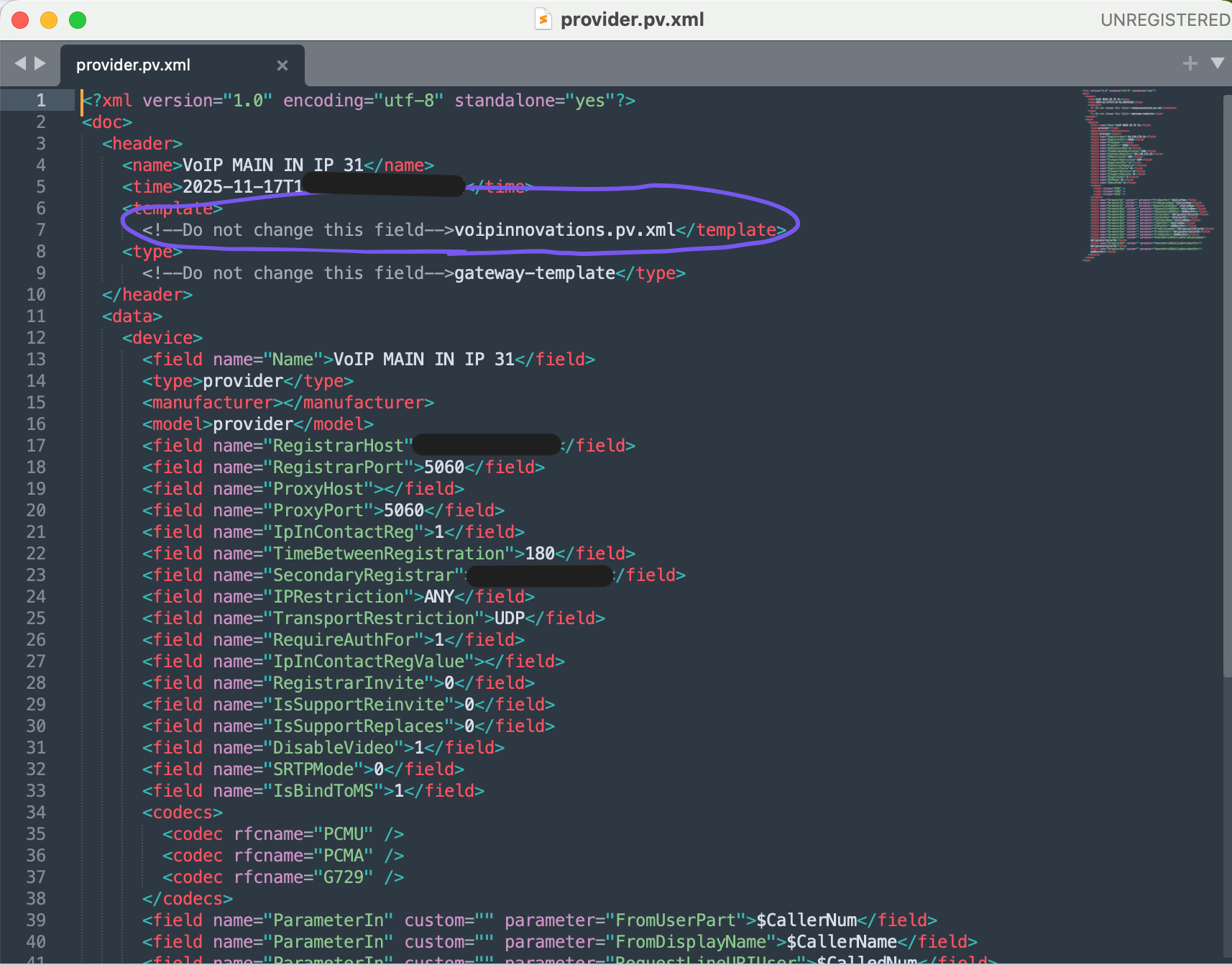
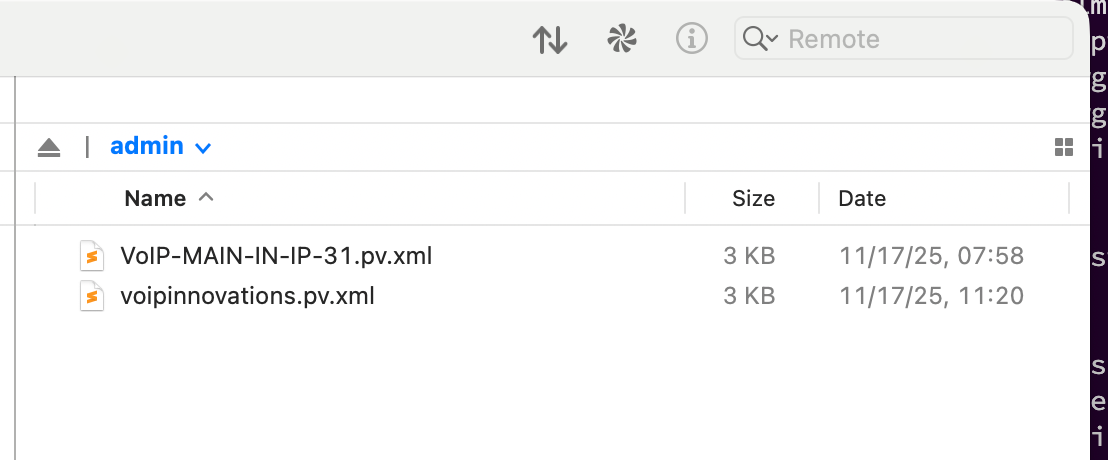
3.) Rename the file you just exported and opened from provider.pv.xml to voipinnovations.pv.xml
4.) upload the file voipinnovations.pv.xml using SFTP, will only allow to upload on user foler (admin) /home/admin/
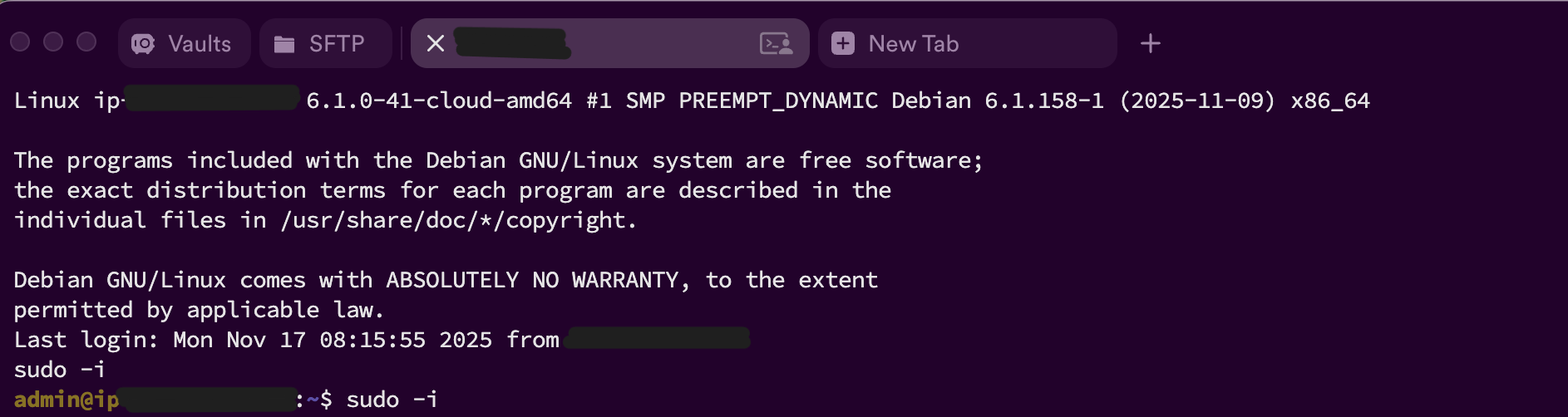
5.) logging by SSH and change to root (command sudo -i)
6.) copy the file to the path /var/lib/3cxpbx/Instance1/Data/Http/Templates/provider
when you're root, you can access the folder and move files, run single command:
sudo cp /home/admin/voipinnovations.pv.xml /var/lib/3cxpbx/Instance1/Data/Http/Templates/provider
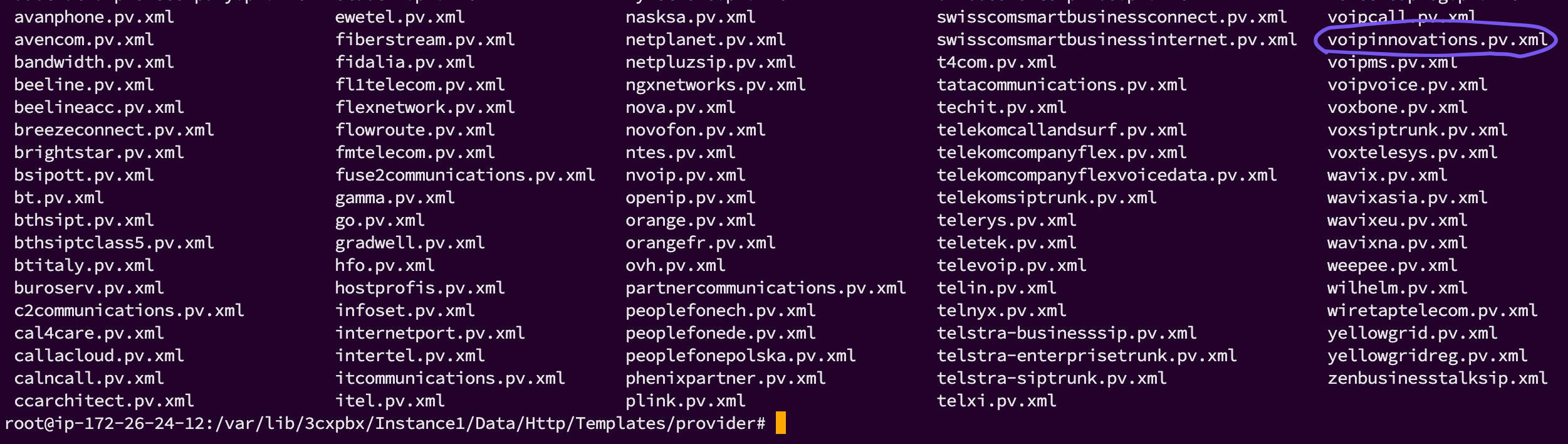
Once the template is on the correct place, you can edit the trunk.
Notes:
1) inside Amazon LightSail, you need to create a rule to allow Port 22 (not by default)
2) you need to download the SSH encryption key from Amazon Lightsail
3) user is admin but 3CX has another user (phonesystem) and locks the path after /var/lib/ so you cannot access /var/lib/3cxpbx/ with admin, need to switch to root
4) you cannot use SFTP as root, impossible, that's why you need to upload to your user home folder and copy the file
Was this article helpful?
That’s Great!
Thank you for your feedback
Sorry! We couldn't be helpful
Thank you for your feedback
Feedback sent
We appreciate your effort and will try to fix the article