This article will show you how to enable and use Internet Explorer Compatibility Mode. This mode is required when using older equipment or accessing older websites that have not been updated to work on modern web browsers. Please note that using outdated software or hardware could pose a security risk.
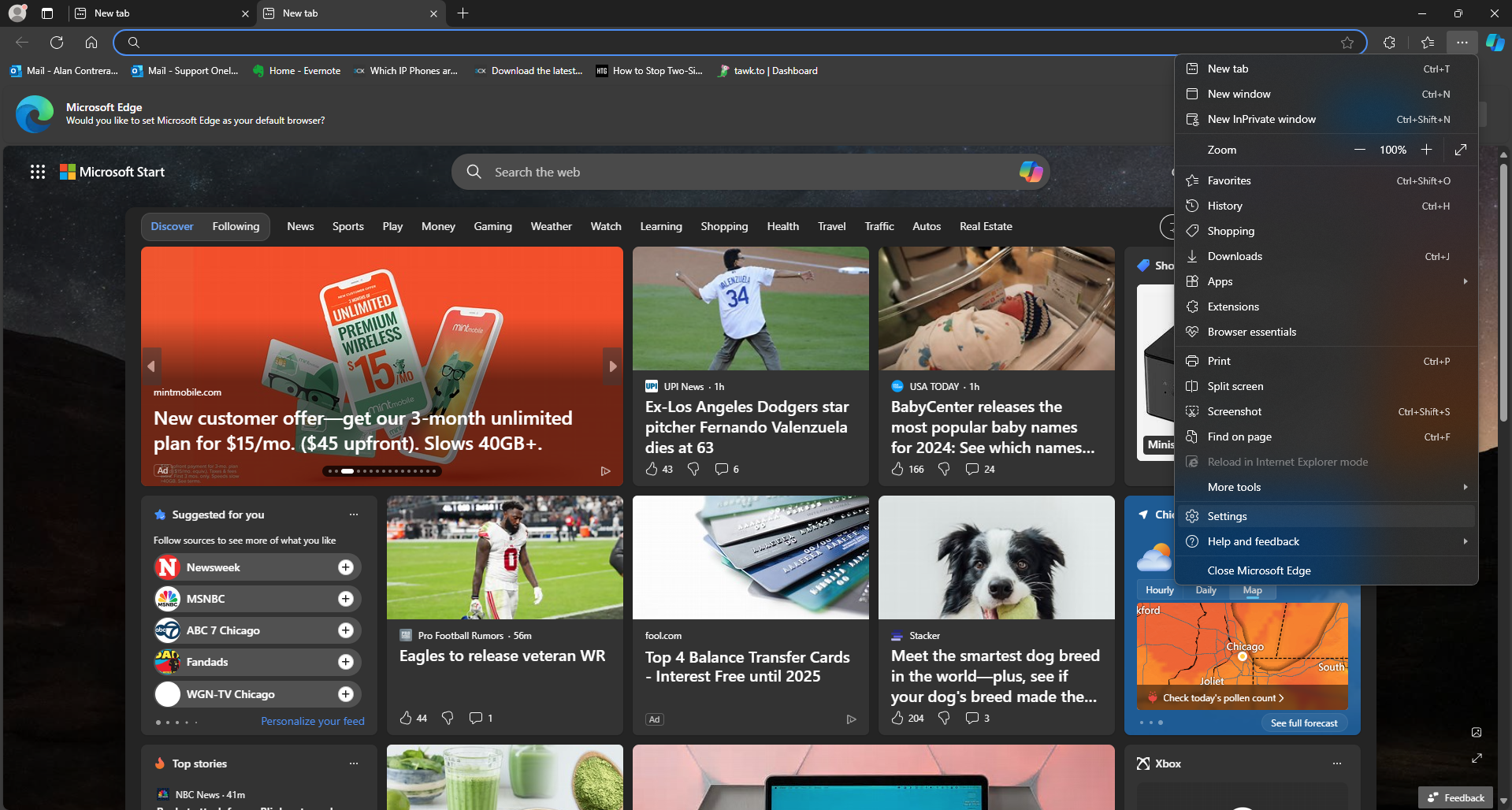
First open up Microsoft Edge and travel to settings.
After you enter the settings page, select Default Browser from the menus tab.
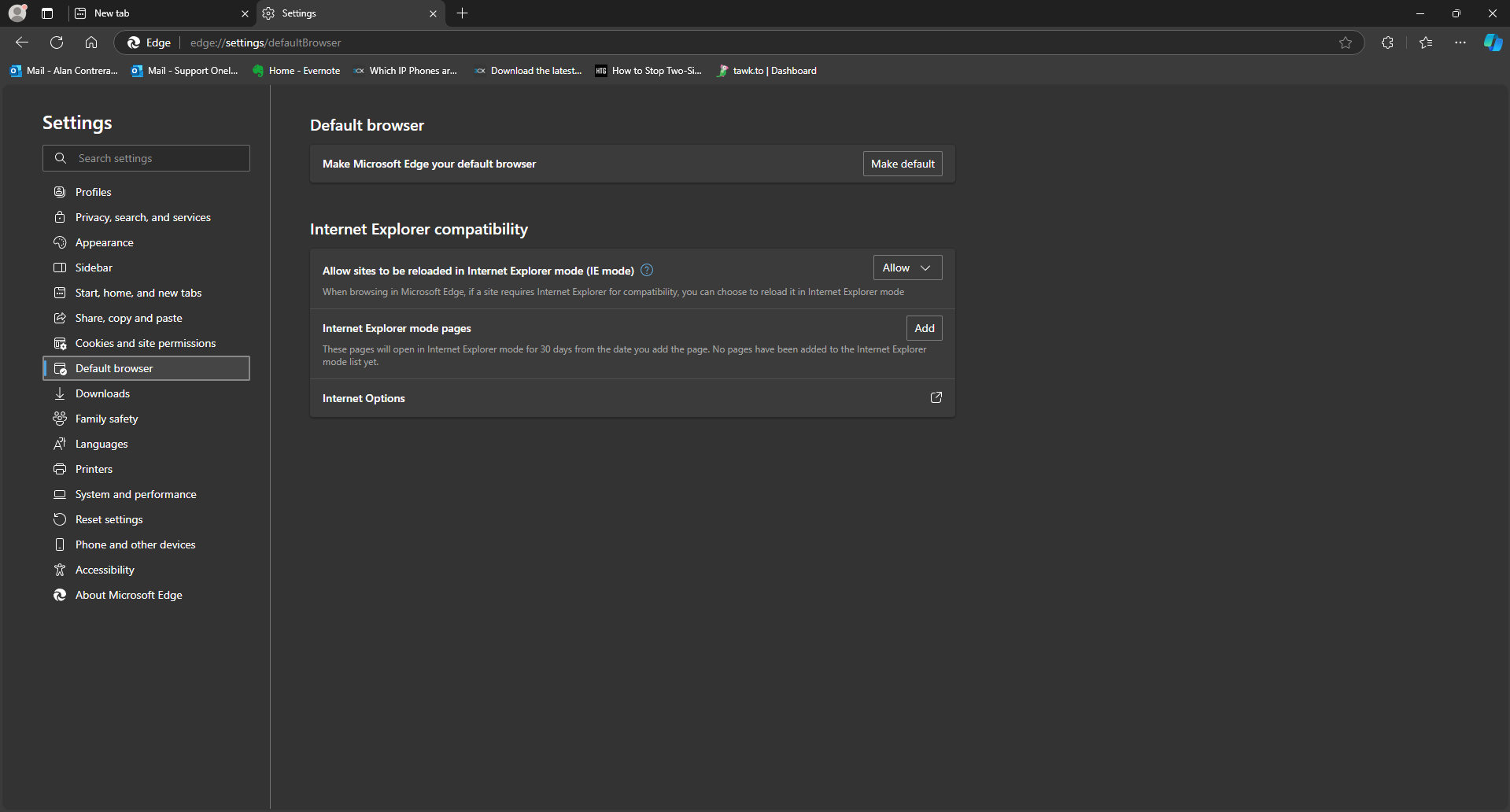
There you can see the section that says Internet Explorer Compatibility. If not set to "Allow" already, please turn the setting "Allow sites to be reloaded in Internet Explorer mode (IE mode)" to allow. Next, add the webpage you would like to use in Compatibility mode.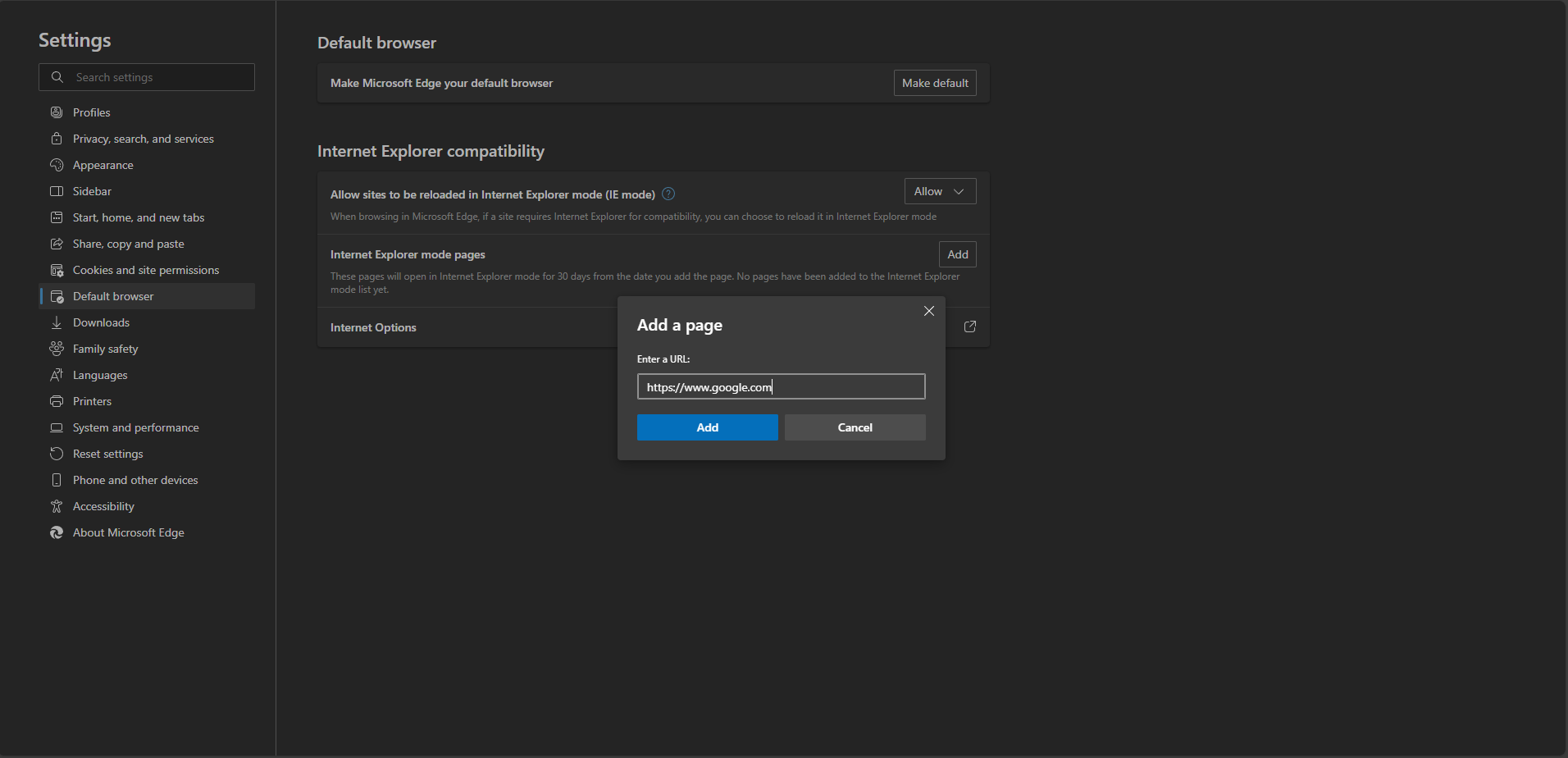
After opening the webpage, you would see the internet explorer icon on the top left. Click that select "Open this page in Compatibility view". Sometimes this is needed for webpages, sometimes it's not necessary.
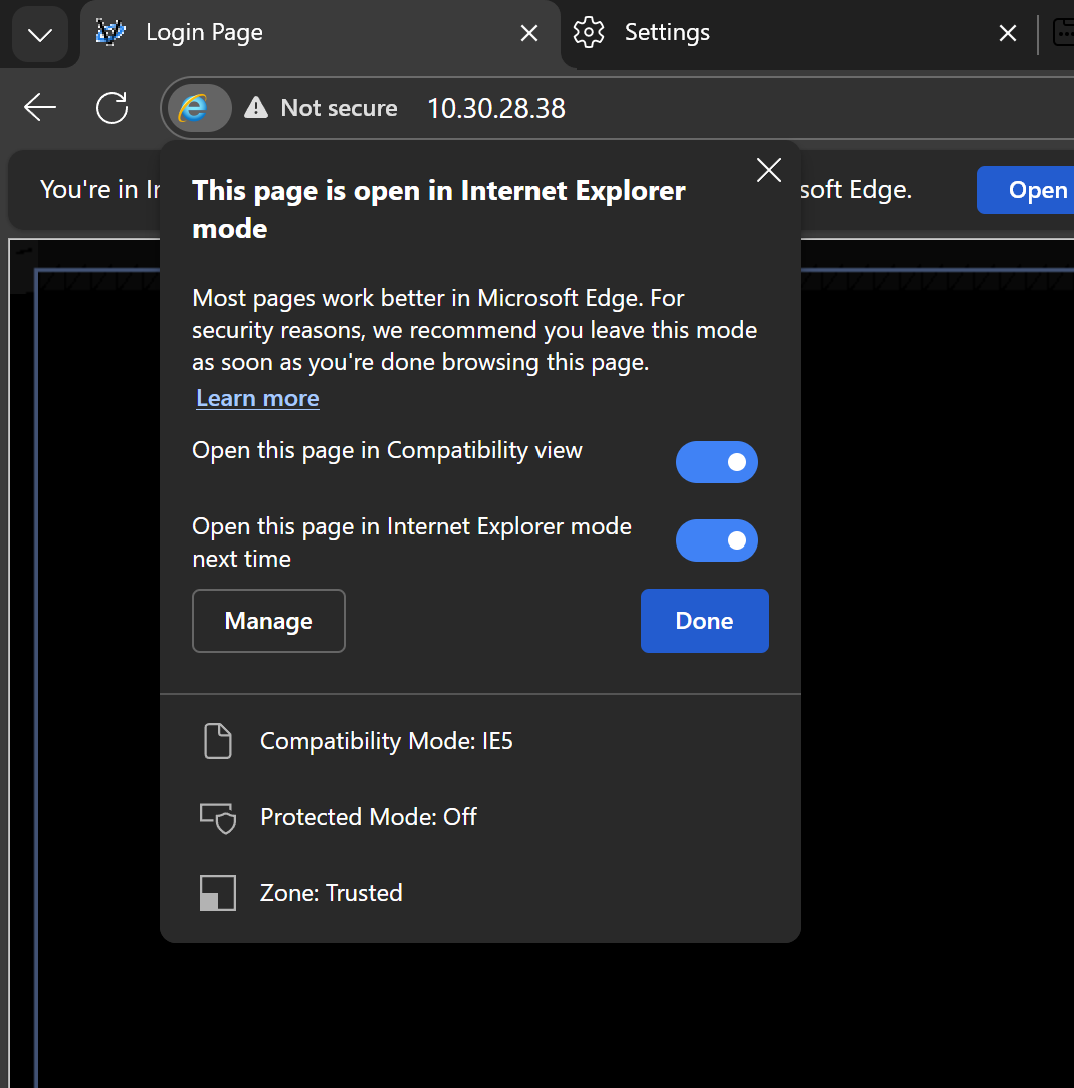
These settings will only save for 30 days, afterwards they will revert back and you will have to do it over again.
Was this article helpful?
That’s Great!
Thank you for your feedback
Sorry! We couldn't be helpful
Thank you for your feedback
Feedback sent
We appreciate your effort and will try to fix the article